On this page
- What Data Recovery Pilot is for
- How Data Recovery Pilot works, step by step
- Repair for damaged files
- Image a failing drive first
- What makes it different
- Free vs licensed: what you can do before paying
- Measured results
- Honest limits: what no software can do
- System requirements
- How to get started with Data Recovery Pilot
- What to do next
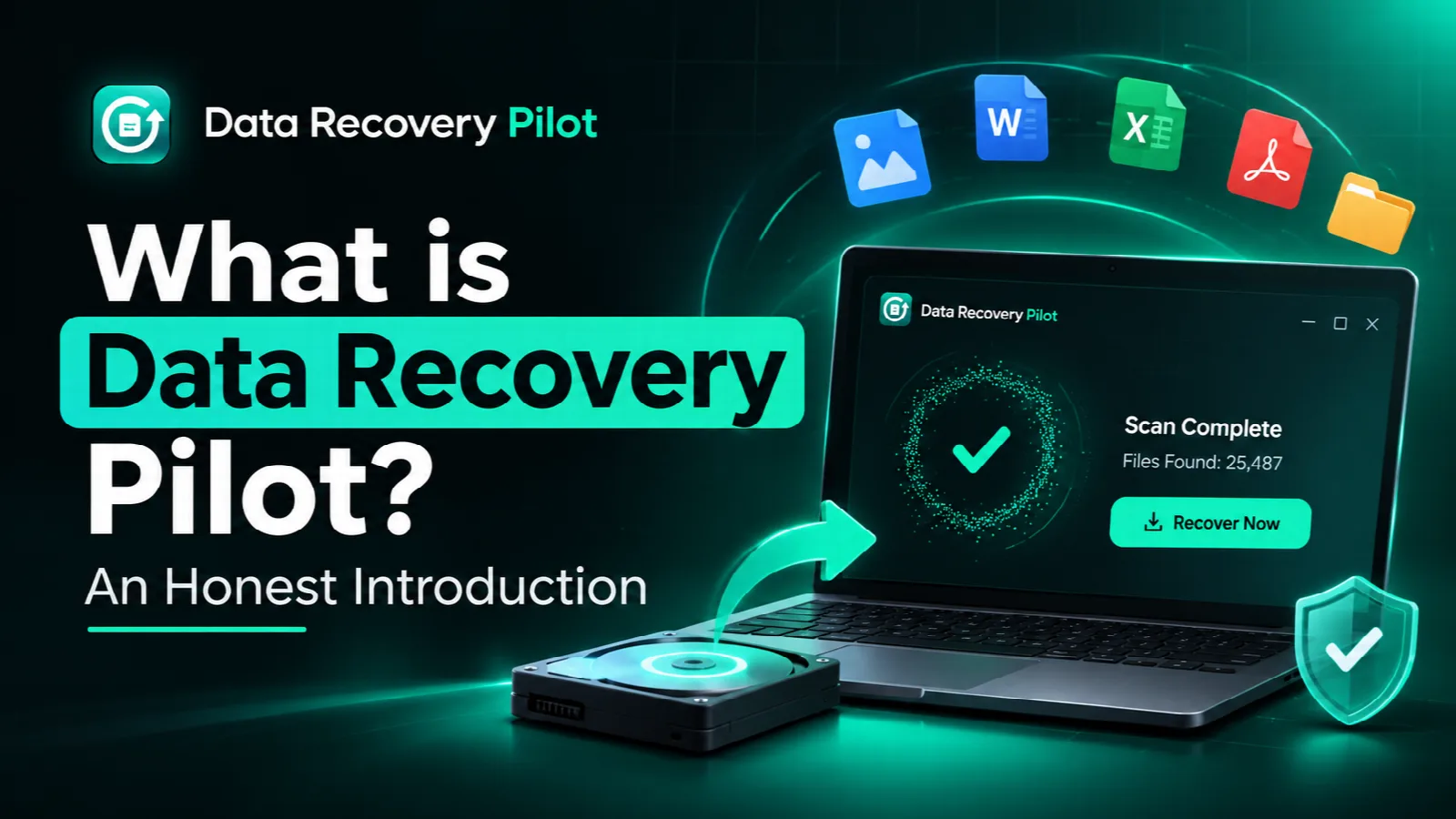
Data Recovery Pilot is data recovery software for Windows 10 and 11. It finds deleted files, files from an emptied Recycle Bin, and data on formatted, RAW or failing drives, then checks each file from start to end and tells you whether it will actually open before you recover it.
If you have just lost files, stop saving anything new to the drive they were on. New data can overwrite what you want back. Then read on: this page explains what the app does, how it works, what it costs to use, and what it honestly cannot do.
What Data Recovery Pilot is for
Data Recovery Pilot is built for the common ways people lose files on a Windows PC. It runs on Windows 10 and Windows 11 (64-bit) and reads drives formatted with NTFS, exFAT and FAT32/16/12.
- Deleted files. You pressed Shift+Delete, or a program removed files without asking. See our guide to recovering deleted files.
- Emptied Recycle Bin. The files were in the Recycle Bin and you emptied it.
- Formatted drives. A drive or card was formatted by mistake, by you, by Windows or by a camera.
- RAW drives. Windows asks you to format a drive, or Disk Management shows it as RAW, so you cannot open it.
- Failing drives. The drive is slow, freezes, or disconnects while you copy from it.
- Disk images. You already have an image of a drive (.drimg, .img, .dd or a fixed VHD) and want to search it instead of the original.
It works with internal and external hard drives, SSDs including NVMe, USB flash drives, and SD and microSD cards.
How Data Recovery Pilot works, step by step
The workflow is the same for every kind of drive. You do not need to know anything about file systems to follow it.
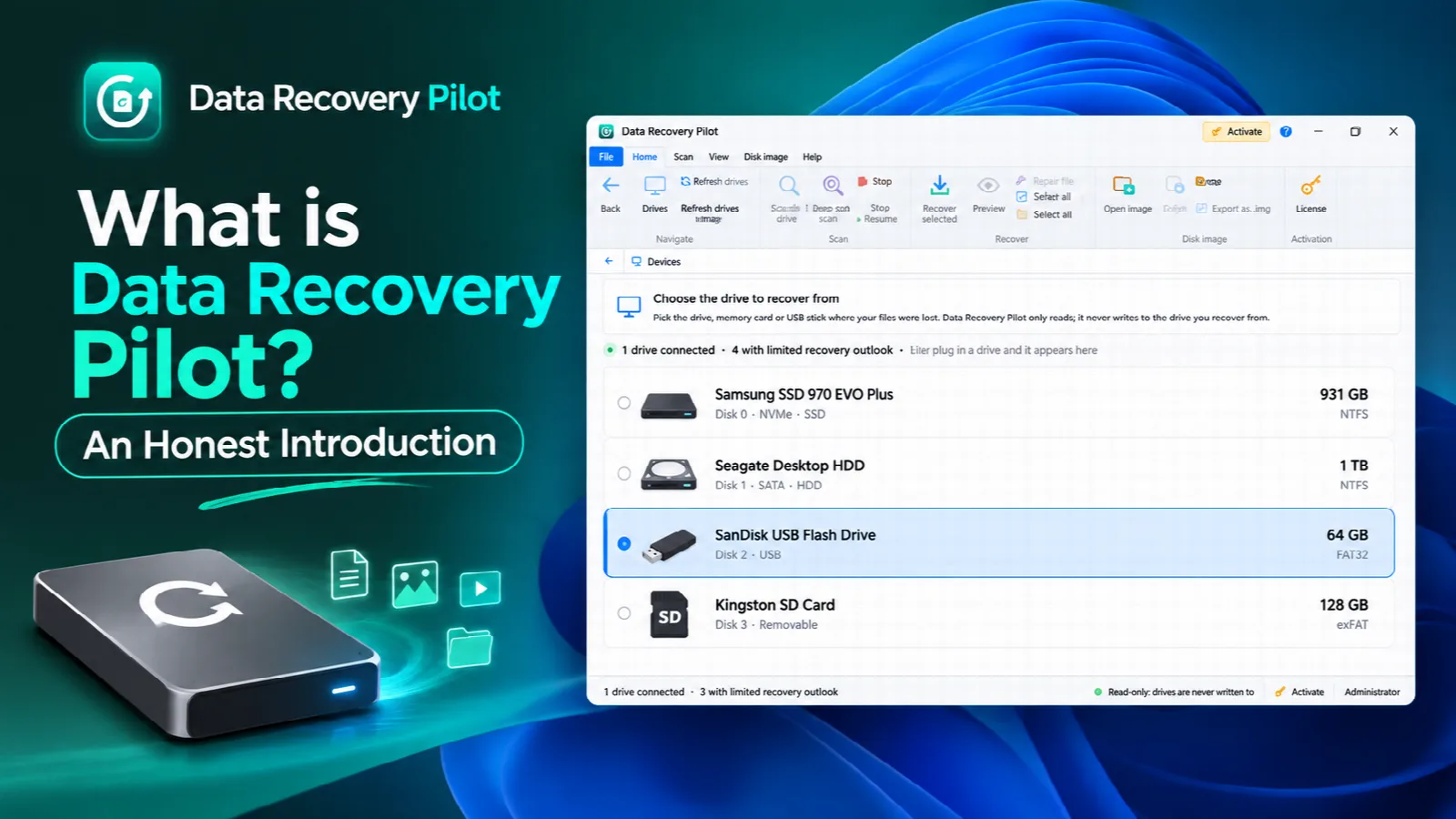
- Choose the drive. Pick the drive, partition, card or disk image where the files used to be.
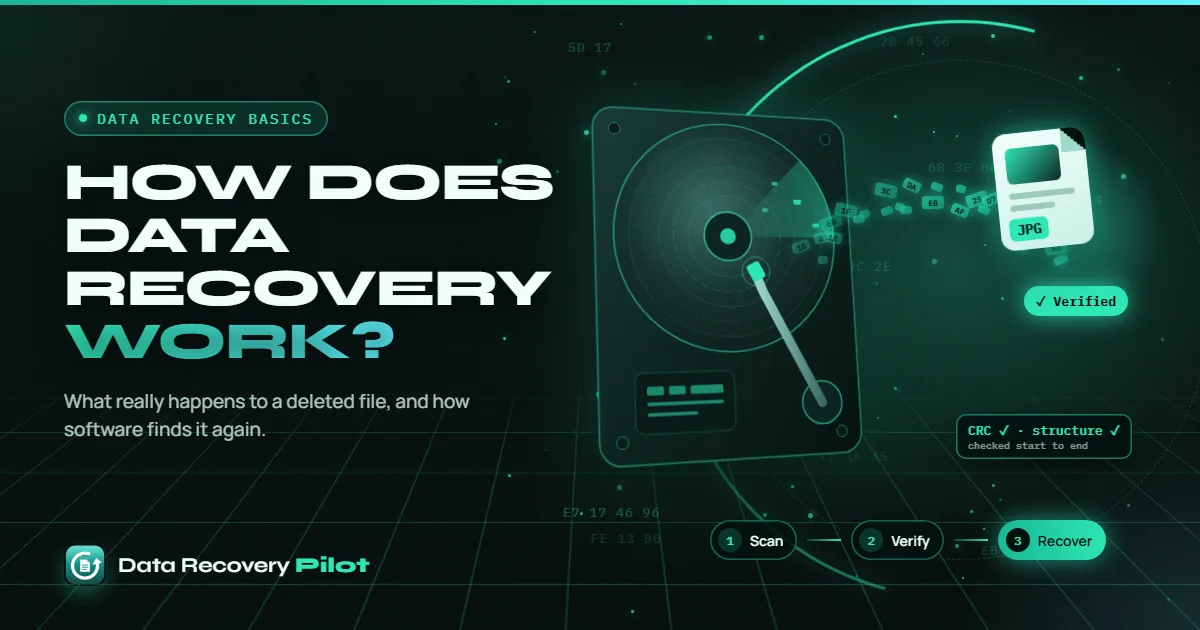
- Run a quick scan. The quick scan reads the drive's file table. That is where Windows keeps file names, folders and the location of each file's data. It finds recently deleted files and emptied Recycle Bin items, usually with their original names and folders.
- Run a deep scan if needed. If the drive was formatted, shows as RAW, or the quick scan did not find your files, the deep scan reads every sector and recognizes files by their content. Results appear live while it runs, so you can start looking before it finishes.
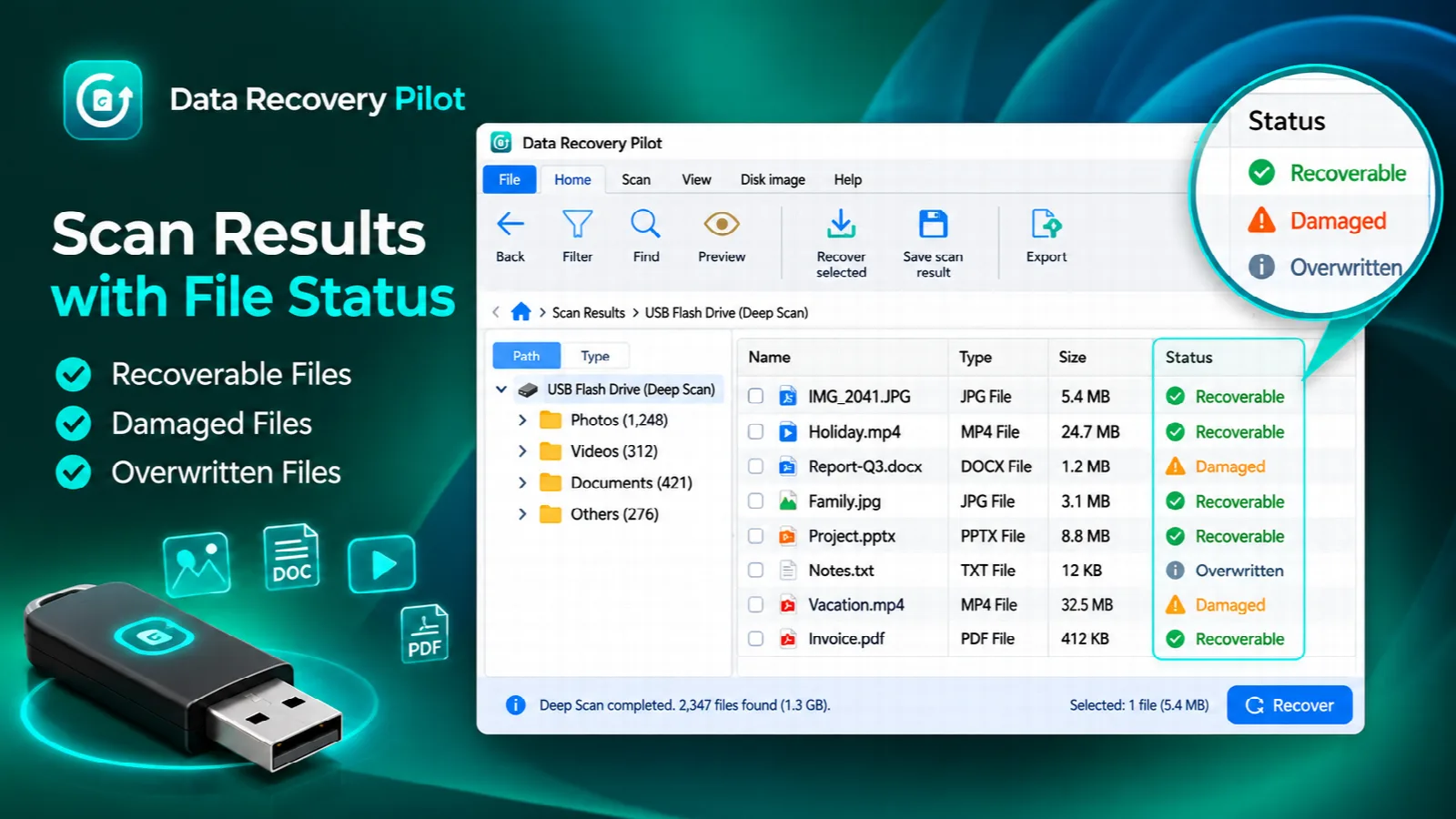
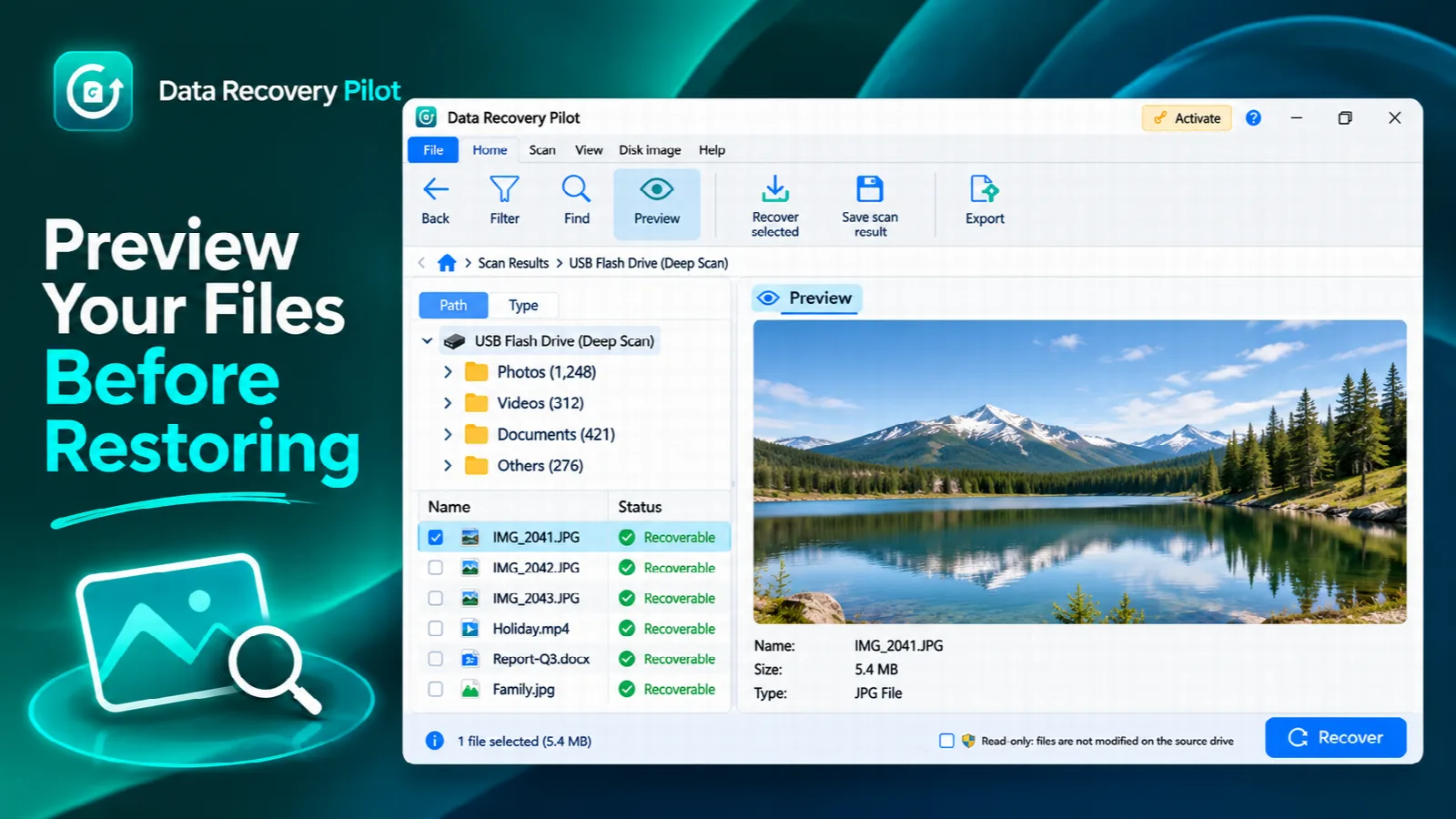
- Check the labels. Every deleted file is checked from start to end and labelled Recoverable, Damaged (with the point where the damage starts) or Overwritten.
- Preview. Open files inside the app before recovering: photos including camera RAW and HEIC, video with seeking, PDF, Office documents, Outlook data, archives, and a hex view for anything else.
- Recover to a different drive. Save the files to another drive, such as a second internal drive or an external USB drive. Recovering to the drive you are scanning is blocked, so you cannot overwrite the files you are trying to save.
Repair for damaged files
Some files come back labelled Damaged. Often that happens because the file was stored in several pieces (fragmented), and one piece is not where the file table says it should be. Repair looks for the missing piece and rebuilds the file. It grades each result as Exact, Structural or Weak, so you know how much to trust it.
Image a failing drive first
If a drive is slow, makes the PC freeze, or keeps disconnecting, scanning it directly puts extra strain on it. Data Recovery Pilot can create a disk image instead. It copies the healthy areas first and leaves the weak areas for last, reading them gently. If the drive disconnects, imaging can resume. The image is saved in the lossless .drimg format, and you then scan the image rather than the struggling drive. Our failing hard drive recovery page explains this in more detail.
What makes it different
A list of found files is only useful if you know which of them will actually open. Data Recovery Pilot is designed around that idea and a few related principles.
- Verification before recovery. Each deleted file is checked from start to end, so the Recoverable, Damaged and Overwritten labels tell you what to expect before you recover anything.
- Read-only scanning. The app opens the drive read-only. Scanning does not write to the drive you are recovering from.
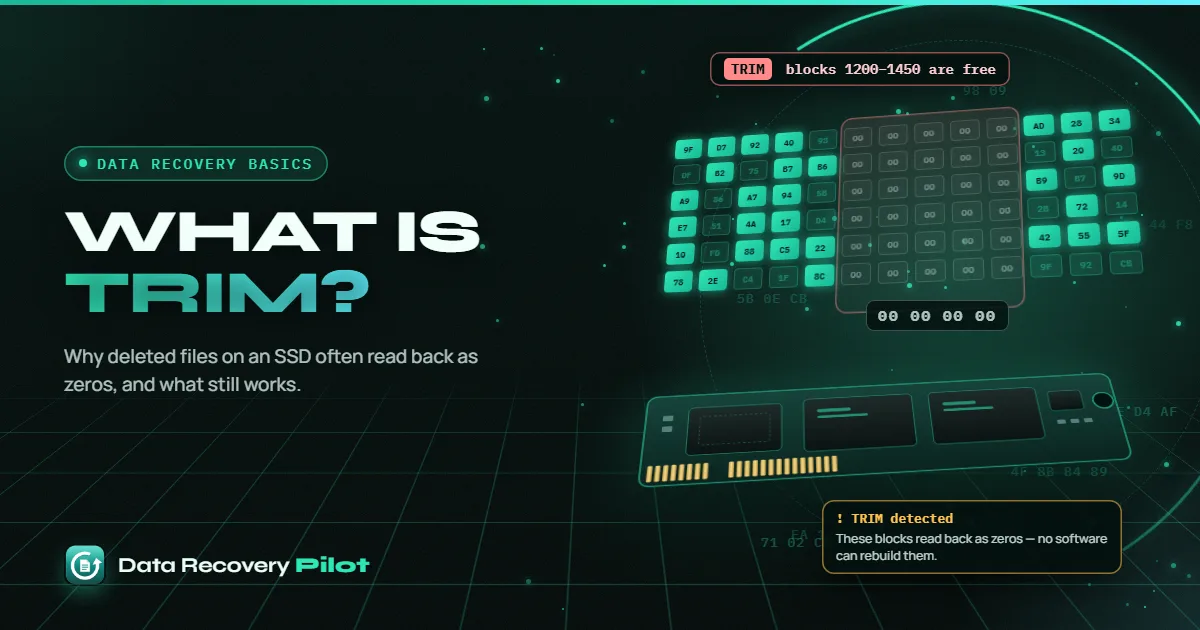
- Honest TRIM detection. On SSDs, Windows usually sends a TRIM command after you delete files, and the SSD then reads that space back as zeros. Data Recovery Pilot detects this and tells you plainly when files are gone, instead of handing you files full of zeros. Our SSD data recovery page covers this.
- Resumable deep scans. Deep scan progress is saved at least every 30 seconds. After a crash or a power cut, the scan resumes instead of starting from zero.
Free vs licensed: what you can do before paying
You can find out whether your files are recoverable without paying anything. Scanning, verification and preview are free. A license is needed when you want to save the files.
| Feature | Free | Licensed |
|---|---|---|
| Quick scan | Yes | Yes |
| Deep scan (formatted, RAW, damaged drives) | Yes | Yes |
| Verification labels (Recoverable, Damaged, Overwritten) | Yes | Yes |
| Preview photos, video, documents and more | Yes | Yes |
| Open and scan existing disk images | Yes | Yes |
| Recover and save files | No | Yes |
| Repair damaged files | No | Yes |
| Create disk images of failing drives | No | Yes |
This means you can scan, check the labels and preview your most important files first, then decide. Current license options are on the pricing page.
Measured results
We publish only results we have measured ourselves:
- 70,493 files recovered from a formatted 128 GB drive.
- 99.7% of those files back in their original folders (same test).
- 0 intact files wrongly marked damaged (64 GB test).
Your results depend on your drive and what happened to it. That is exactly why the app verifies each file and shows you the outcome before you recover.
Honest limits: what no software can do
Data recovery software can only read what is still physically on the drive. Some situations are beyond any program, and it is better to know that up front.
- TRIM on SSDs. Once TRIM has run on deleted files, the SSD usually returns zeros for that space. The original data cannot be read back. Data Recovery Pilot tells you when this has happened.
- Overwritten data. If new files were saved over the space a deleted file used, the old content is replaced. Files in that state are labelled Overwritten.
- Full format on Windows 10 and 11. A full format (with the quick format option unchecked) writes zeros across the volume, so the old data is gone. A quick format leaves most data in place.
- Physical damage. If a drive clicks, grinds, smells burnt, or has been in water or fire, power it off and contact a professional data recovery lab. Running any software on a physically damaged drive can make things worse.
Never format, initialize or run chkdsk on a drive you want to recover from. Each of these can write to the drive and reduce what can be recovered.
System requirements
- Windows 10 or Windows 11, 64-bit.
- File systems: NTFS, exFAT, FAT32, FAT16 and FAT12.
- Drives: internal and external hard drives, SSD and NVMe, USB flash drives, SD and microSD cards.
- Disk images: .drimg, .img, .dd and fixed VHD.
- A second drive to recover files to, such as an external USB drive. You cannot recover to the drive you are scanning.
How to get started with Data Recovery Pilot
- Stop using the affected drive. Do not save, install or download anything to it.
- Download and install the app on a different drive. If the lost files were on your C: drive, keep new writes to a minimum and, if you can, install on another drive. Get it from the download page.
- Scan the drive. Start with a quick scan. Run a deep scan if the drive was formatted, is RAW, or your files are missing from the quick scan results.
- Check labels and preview. Look at the Recoverable, Damaged and Overwritten labels and preview your most important files.
- Recover to another drive. When you are ready, get a license and save the files to a different drive.
What to do next
If you have not done anything to the drive yet, you are in the best position. Leave it alone, download Data Recovery Pilot onto another drive, and run a quick scan. If the drive is clicking or has physical damage, power it off and contact a lab instead. For common questions about scanning, licensing and recovery, see the FAQ.
Questions people ask
Is Data Recovery Pilot free?
Scanning is free. You can run a quick scan and a deep scan, see the verification labels, preview files and open existing disk images without a license. A license is needed to recover and save files, to use Repair, and to create disk images of failing drives. License options are listed on the pricing page.
Does Data Recovery Pilot write anything to my drive?
No. It opens the drive you are scanning read-only, so the scan does not change it. Recovering files to the same drive is blocked, because saving there could overwrite other deleted files. Always pick a different drive, such as an external USB drive, as the place to save recovered files.
Can Data Recovery Pilot recover files from an SSD?
Sometimes. On most internal SSDs, Windows sends TRIM soon after files are deleted, and the drive then reads that space back as zeros. In that case no software can get the files back. Data Recovery Pilot detects TRIM and tells you honestly, instead of giving you files that will not open.
What does Damaged mean in the scan results?
Damaged means the file was checked from start to end and part of it is not intact, and the app shows the point where the damage begins. The start of the file may still be usable. With a license, Repair can look for the missing piece of a fragmented file, rebuild it, and grade the result Exact, Structural or Weak.
 Data Recovery Basics What is TRIM? SSD TRIM and Deleted Files Explained
 Data Recovery Basics How Does Data Recovery Work? A Plain-English Guide