
On this page
- What is TRIM and why do SSDs need it?
- Does TRIM delete data?
- Garbage collection
- Can you recover data from an SSD after TRIM?
- When TRIM may not have run
- How to check if TRIM is enabled in Windows
- What the numbers mean
- Should you turn TRIM off?
- What to do if you deleted files on an SSD
- What to do next
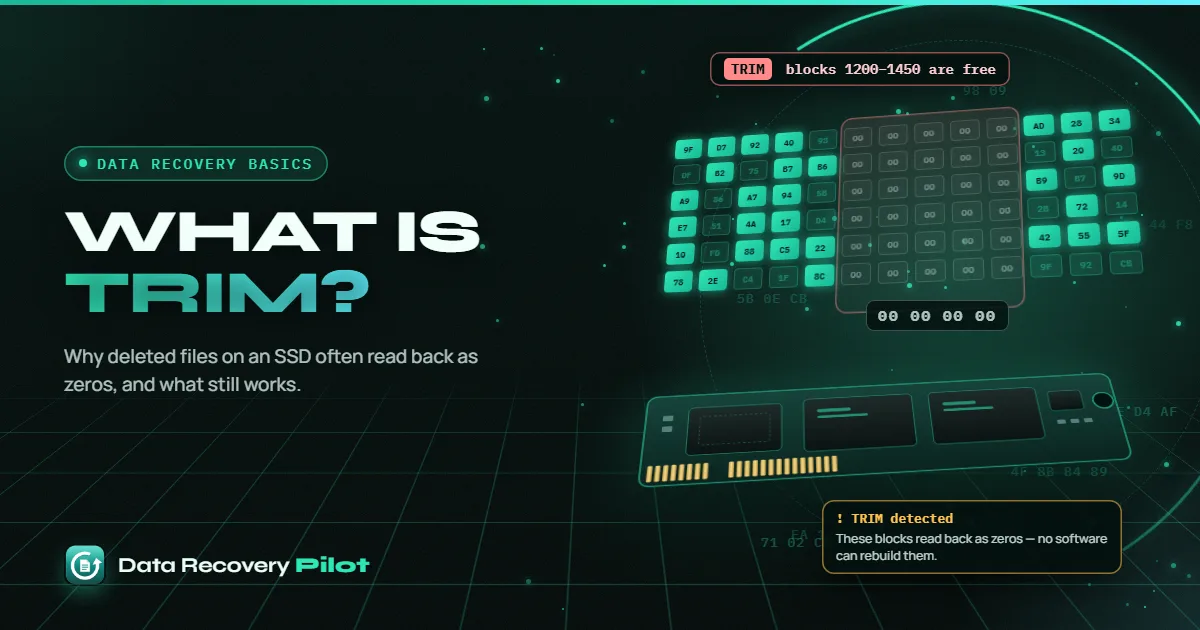
What is TRIM? TRIM is a command Windows sends to an SSD to say which blocks of storage no longer hold a file, usually right after you delete it. The SSD can then erase those blocks in the background. After TRIM, most SSDs read that space back as zeros, so deleted SSD files are often unrecoverable.
TRIM is good for your SSD's speed and lifespan. It is bad news if you deleted something by mistake. This guide explains how TRIM works, when it might not have run, how to check whether it is enabled in Windows, and what to do if you just deleted files on an SSD.
Just deleted files on an SSD? Stop writing to it right away. Do not install software, download files or copy anything onto that drive. If it is your Windows drive, save your work elsewhere and shut down until you are ready to scan from another drive.
What is TRIM and why do SSDs need it?
A hard drive can write new data straight over old data. An SSD cannot. Flash memory has to be erased before it can be written again, and it can only erase in large blocks, while it writes in much smaller pages. If the SSD does not know which pages hold deleted data, it keeps carrying that useless data around, and writing slows down over time.
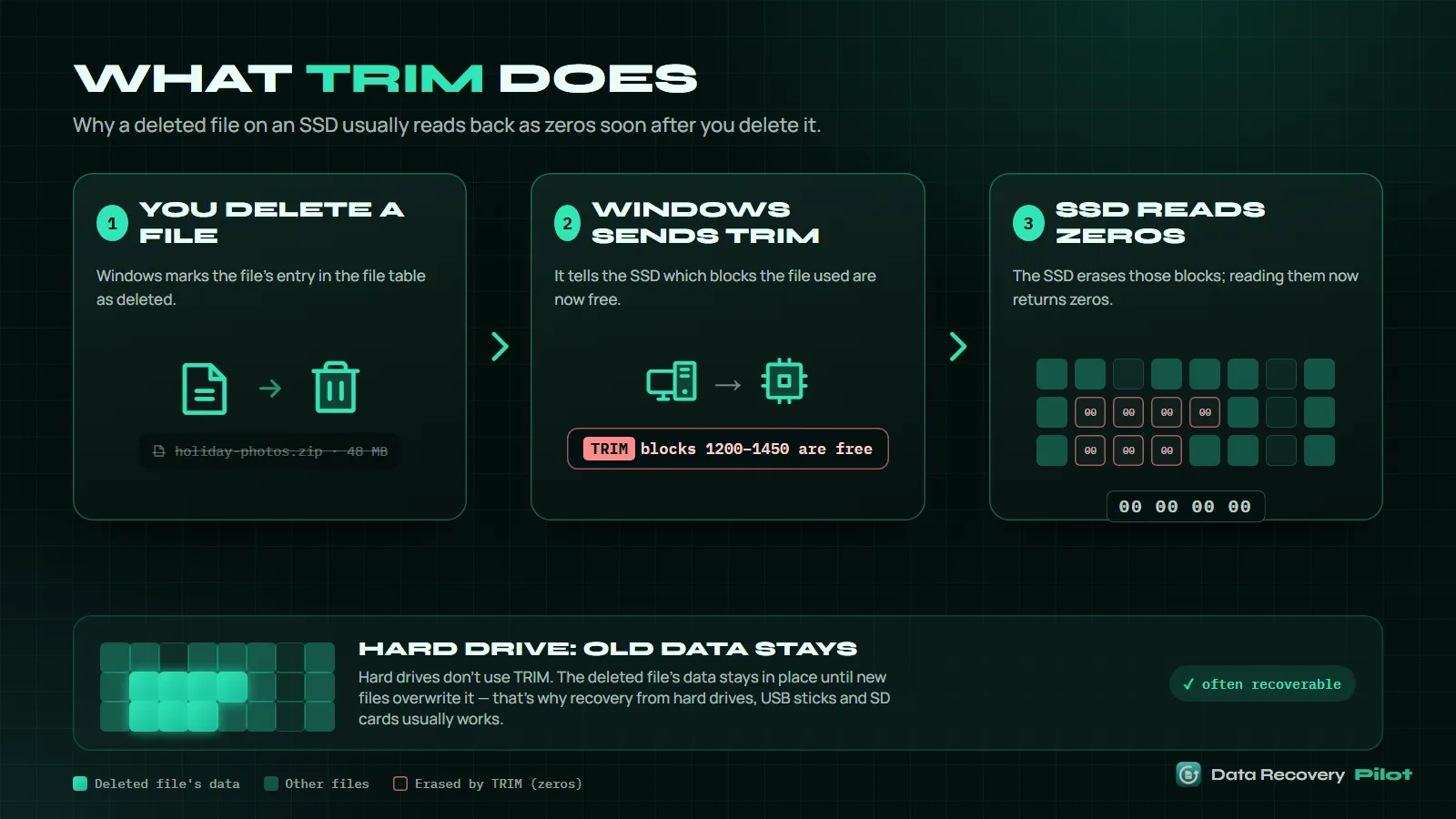
TRIM fixes this. When you delete a file, Windows tells the SSD which logical blocks are now free. The SSD marks them as invalid and stops treating their contents as data worth keeping. The name differs by connection type: TRIM on SATA drives, Deallocate on NVMe drives, and UNMAP on SCSI-based storage. Windows calls the feature delete notification, and Microsoft's fsutil behavior documentation describes it as notifying "the underlying storage device of clusters that have been freed due to a file delete operation."
On NTFS, TRIM is enabled by default unless an administrator turns it off. Windows also sends TRIM for free space on a schedule through the Defragment and Optimize Drives tool, which on SSDs runs a "retrim" rather than a defragment.
Does TRIM delete data?
Strictly speaking, TRIM does not erase anything itself. It is a message. But the effect is the same from a recovery point of view.
Once a block has been trimmed, the SSD removes it from its internal map of where data lives. Many modern SSDs return zeros for a trimmed block straight away, even before the flash cells are physically erased, because the drive no longer points that address at any stored data. Recovery software reads the drive through the same interface as Windows, so it sees the zeros too.
Garbage collection
Garbage collection is the SSD's own background housekeeping. The controller gathers the still-valid pages from partly used blocks, moves them together, and erases the blocks that are left full of invalid data, so it has clean space ready for new writes. TRIM tells garbage collection which data is safe to throw away. Once garbage collection has erased a block, the old content is physically gone as well.
You cannot control when garbage collection runs. It happens inside the SSD, often when the drive is idle, and it can continue even if you do nothing on the PC.
Can you recover data from an SSD after TRIM?
In most cases, no. If TRIM has run on a deleted file and the SSD reads that space back as zeros, there is nothing left to recover through software. A data recovery lab may have more options in some cases, but you should not count on it for trimmed data.
Be careful with tools that still list trimmed files. A file table entry can survive after the data is gone, so a scan may show the right name and size while the content is all zeros. The file then fails to open after recovery.
Data Recovery Pilot detects TRIM and tells you honestly when a deleted file's data now reads back as zeros, instead of handing you a broken file. Each file is checked from start to end and labelled Recoverable, Damaged or Overwritten, so you know before you recover. Scanning and preview are free. Our SSD data recovery page explains what you can and cannot expect.
When TRIM may not have run
TRIM is not universal. There are situations where it may not have been sent, or may not have taken effect yet. None of these is certain, so the only way to know is to scan.
- External SSDs in USB enclosures. Many USB-to-SATA adapters and enclosures do not pass TRIM through to the drive, and some external SSDs do not support it over USB. Newer enclosures and drives often do, so this varies from model to model.
- USB flash drives and memory cards. These are flash storage too, but they usually do not receive TRIM when connected through typical USB ports and card readers. Deleted files on them often behave more like a hard drive: the data stays until overwritten.
- TRIM turned off in Windows. If delete notifications were disabled, Windows does not send TRIM. You can check this with the command below.
- Some RAID setups. Certain RAID controllers and older RAID configurations do not pass TRIM to the member drives.
- Older hardware or drivers. Some older SSDs, controllers or storage drivers did not support TRIM.
- Very recent deletion. On some drives there can be a short delay before a trimmed block reads as zeros. This window is often very short or absent, so do not rely on it.
Traditional spinning hard drives do not need TRIM, so deleted data on them normally stays until it is overwritten. See recovering deleted files for that case.
Formatting an SSD usually also means TRIM for the whole volume: Windows typically sends it during the format, even a quick format. Do not assume a formatted SSD is like a formatted USB stick.
How to check if TRIM is enabled in Windows
Windows has a built-in command that shows whether delete notifications (TRIM) are turned on. It works the same on Windows 10 and Windows 11.
- Right-click the Start button and choose Terminal (Admin) on Windows 11 or Windows PowerShell (Admin) on Windows 10. You can also search for cmd, right-click Command Prompt and choose Run as administrator.
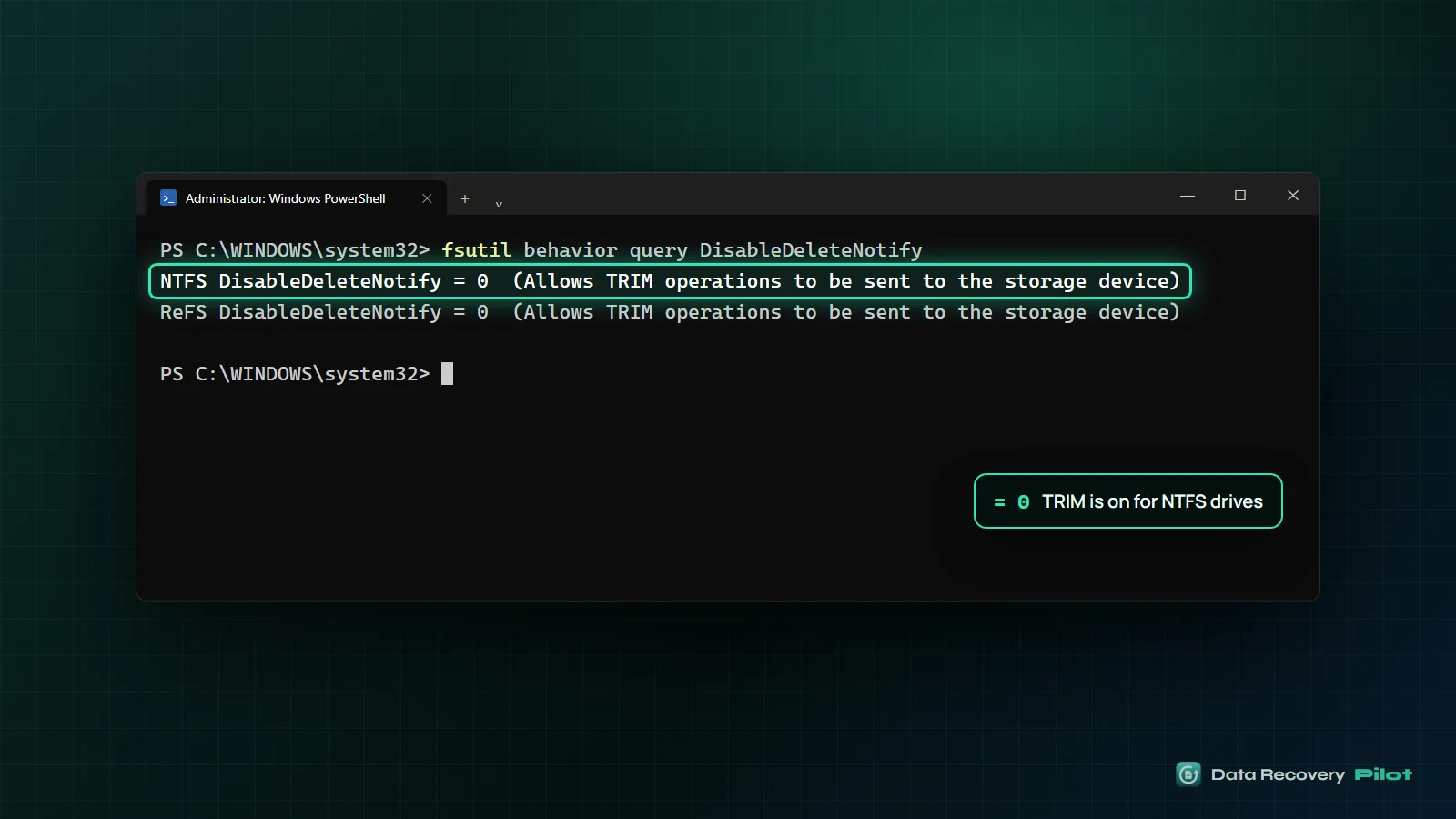
- Type this command and press Enter:
fsutil behavior query DisableDeleteNotify - Read the result. You will see something like:
NTFS DisableDeleteNotify = 0
ReFS DisableDeleteNotify = 0
What the numbers mean
The setting is called DisableDeleteNotify, so the logic is reversed:
| Value | Meaning |
|---|---|
DisableDeleteNotify = 0 |
Delete notifications are enabled. TRIM is on. |
DisableDeleteNotify = 1 |
Delete notifications are disabled. TRIM is off. |
is not currently set |
No override is set, so the file system's default applies. |
The NTFS line is the one that matters for most home PCs, because Windows drives normally use NTFS. The ReFS line applies only to drives formatted with ReFS, which is mostly found on servers and storage setups. Microsoft notes that NTFS has TRIM enabled by default, ReFS v1 has it enabled by default, and ReFS v2 has it disabled by default. Some Windows versions add a word in brackets after the number; go by the number.
Keep in mind that this is a system-wide setting. It tells you whether Windows sends TRIM, not whether a particular drive or USB enclosure accepts it.
Should you turn TRIM off?
For everyday use, no. TRIM keeps an SSD fast and helps it last. Turning it off as a general precaution trades long-term performance for a small chance at recovering a future accident. A good backup, such as File History or a cloud copy, protects you far better.
What to do if you deleted files on an SSD
- Check the Recycle Bin first. Files deleted with the Delete key on an internal SSD usually go there, and TRIM does not touch them until the bin is emptied. Right-click the file and choose Restore.
- Check backups and cloud copies. Look in the OneDrive recycle bin, File History, or Previous Versions if you had them turned on.
- Stop writing to the SSD. Do not install programs, download files or save documents to it. If it is your system drive, save your work to another drive and shut down until you are ready.
- Scan from another drive. Install recovery software on a different drive, or connect the SSD to another PC as a second drive, then scan.
- Check the results honestly. Look at whether files are reported as recoverable or as gone because of TRIM. Preview important files before you recover.
- Recover to a different drive. Never save recovered files back to the same SSD.
What to do next
If you just deleted files on an SSD, act quickly: check the Recycle Bin and backups, stop using the drive, and scan from another drive to see what TRIM has left. If TRIM has already cleared your files, no software can bring them back, and an honest scan saves you from recovering broken copies. To avoid this in future, keep a regular backup of anything you cannot replace.
Questions people ask
Does emptying the Recycle Bin trigger TRIM?
Yes, on an internal SSD with TRIM enabled. While a file sits in the Recycle Bin it is not deleted, so its data is safe. When you empty the bin or press Shift+Delete, Windows frees the space and normally sends TRIM to the SSD. After that, the deleted data usually reads back as zeros and cannot be recovered.
Does TRIM affect USB flash drives and SD cards?
Usually not in the same way. USB flash drives and memory cards connected through typical USB ports and card readers generally do not receive TRIM from Windows. Deleted files on them often stay on the device until new data overwrites them, which is why recovery from these devices is often more successful than from an internal SSD.
How quickly does TRIM erase deleted files?
Often within seconds. On NTFS, Windows normally sends TRIM when files are deleted, and many SSDs then return zeros for those blocks straight away. Windows also re-sends TRIM for free space on a schedule through Optimize Drives. There is no reliable delay you can count on, so stop using the drive and scan as soon as possible.
Is TRIM enabled by default in Windows 10 and 11?
Yes. For NTFS, which almost all Windows drives use, delete notifications are enabled by default unless an administrator disables them. You can confirm this by running fsutil behavior query DisableDeleteNotify in an administrator Command Prompt or Terminal. A value of 0 on the NTFS line means TRIM is on.
 Data Recovery Basics How Does Data Recovery Work? A Plain-English Guide
 Data Recovery Basics What is Data Recovery Pilot? An Honest Introduction