
On this page
- In this guide
- Why a partition shows “Unallocated” after a Windows update
- Step 1: Check Disk Management (Healthy, RAW and Unallocated explained)
- Step 2: Simple fixes that don't write to your data
- Look for the drive under a different letter
- Assign a drive letter, only if the partition still exists
- Rescan, reconnect and restart
- Why you should NOT create a new volume on unallocated space
- Step 3: Recover a lost partition's files on Windows 11 and 10 (deep scan)
- Before you start
- Run the scan
- After your files are safe
- If the disk is slow, clicking or disconnecting
- What to do next
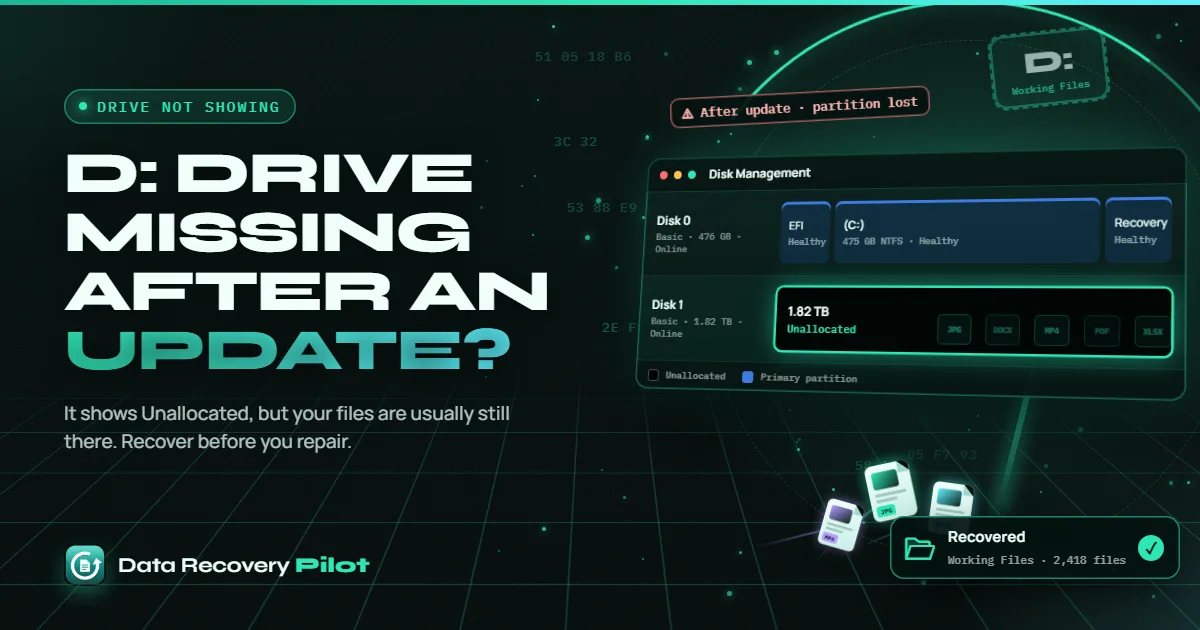
Is your D drive missing after Windows update, with Disk Management showing its space as “Unallocated”? Your files are usually still on the disk. What's gone is the partition entry that tells Windows where the drive starts and ends. Don't create a new volume or format it. Deep-scan the disk and copy your files to another drive first.
Stop before you click anything. When you right-click unallocated space, Disk Management offers New Simple Volume. That wizard writes a new partition and a new, empty file system over the exact area where your old files sit. On an SSD, formatting can also tell the drive to discard the old data. Recover first. Repair later.
In this guide
- Look at the disk in Disk Management and read what its status really means.
- Try the fixes that don't write anything to your data.
- Learn why “New Simple Volume” is the wrong first move.
- Deep-scan the disk and recover your files to a different drive.
- Only then rebuild the partition and copy your files back.
Why a partition shows “Unallocated” after a Windows update
A disk keeps a small table at its start (MBR or GPT) that lists each partition. Windows reads that table to know that, say, 2 TB of the disk is your D: drive. If the entry for D: is damaged or removed, Windows can no longer see a partition there. Disk Management then draws that area as a black bar labelled Unallocated, with no drive letter and no file system.
The important part: losing the table entry does not erase what's inside the partition. The folders, the file table and the files themselves stay where they were until something new is written over them.
It's often hard to prove an update caused it. Sometimes the update just made Windows re-read the disk and reveal a problem that was already there. Common triggers include:
- A damaged partition table after a crash, forced shutdown or power cut during the update's restarts.
- A disk tool, installer or setup step that changed partitions on the wrong disk.
- A disk that is starting to fail, so parts of it (including the partition table) read back wrong.
- A loose cable or a USB enclosure that drops the connection, for external drives.
A typical case from the Eleven Forum: a user's 2 TB “Working Files” partition, used daily for a year, turned up as Unallocated with no drive letter after an update. The first advice from experienced members was the same as ours: don't write anything to that disk, and don't create a new partition on it.
Step 1: Check Disk Management (Healthy, RAW and Unallocated explained)
Right-click the Start button and select Disk Management. This works the same way in Windows 10 and Windows 11. Find the disk your D: drive lived on. Match it by size, not by number: a disk's number can change between restarts.
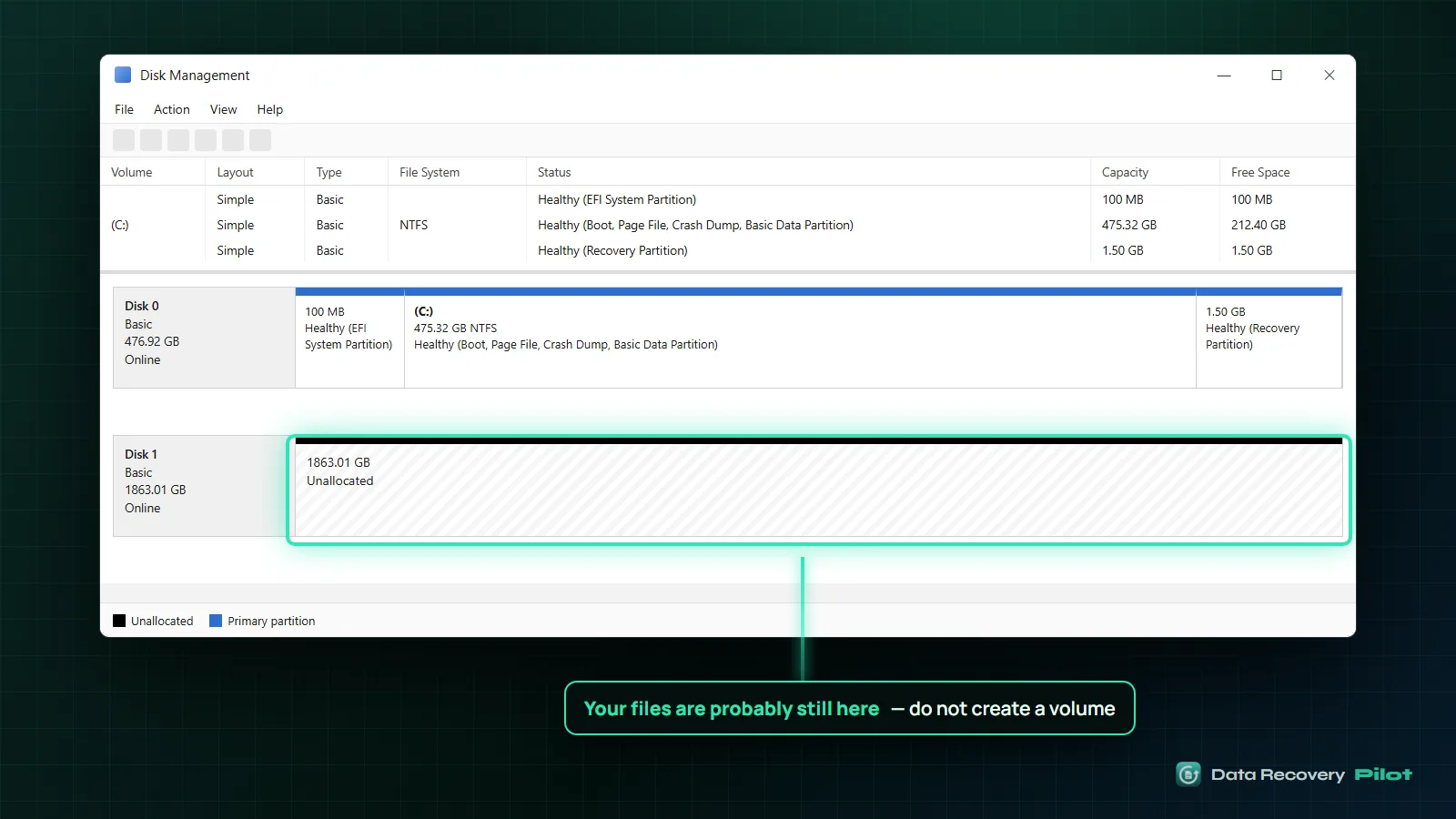
What you see tells you which path to take:
| What Disk Management shows | What it means | Safe next step |
|---|---|---|
| Healthy (NTFS or exFAT), but no drive letter | The partition and file system are fine. Only the letter is missing. | Assign a drive letter (Step 2). |
| Healthy, but the file system says RAW | The partition exists, but Windows can't read the file system inside it. | Don't format. Deep-scan it. See our guide to recovering files from a RAW drive. |
| Unallocated (black bar) | The partition entry is gone. The data is likely still there. | Don't create a volume. Deep-scan the disk (Step 4). |
| Disk shows Unknown and Not Initialized | Windows can't read the disk's partition table at all. | Don't initialize it. Deep-scan or image the disk first. |
| Disk shows Offline | Windows has taken the whole disk offline. | Right-click the disk name and select Online. |
| Disk isn't listed | Windows can't talk to the disk. | Check cables, power and Device Manager. |
Leave the EFI System Partition and Recovery Partition on your Windows disk alone. They are supposed to have no drive letter.
Also check the disk's total size on the left. If a 2 TB disk now shows a tiny or wrong size, the disk itself may be failing. Skip to the section on slow or failing disks below.
Step 2: Simple fixes that don't write to your data
Look for the drive under a different letter
Open File Explorer and select This PC. Sometimes another device, such as a card reader or a new USB drive, takes the letter D:, and your data drive moves to E: or F:. If your folders are there, you're done.
Assign a drive letter, only if the partition still exists
This fix is for a partition that shows a file system (NTFS, exFAT or FAT32) and Healthy status but no letter. Don't try it on unallocated space.
- In Disk Management, right-click the partition and select Change Drive Letter and Paths.
- Select Add.
- Choose Assign the following drive letter, pick D: (or any free letter) and select OK.
This changes a Windows setting, not your files. Microsoft's guide to changing a drive letter covers the same steps. If the option is grayed out on unallocated space, that's expected: there's no volume to give a letter to.
Rescan, reconnect and restart
- In Disk Management, select Action > Rescan Disks.
- For an external drive, plug it into a USB port directly on the PC (not a hub) and try another cable.
- Shut down fully, then start the PC again. Check Disk Management once more.
If the partition comes back with its name and files, copy anything important to another drive now, while it's readable.
Why you should NOT create a new volume on unallocated space
Search results and forum replies often say “just right-click and create a New Simple Volume.” Microsoft's own Disk Management troubleshooting guide only recommends this when you know the partition is empty, and says not to do it if you're trying to recover files.
Here's what the wizard actually does:
- It writes a new partition entry. The new partition may not start exactly where the old one did, which makes it harder to find the old structure later.
- It formats the new partition. Even a quick format writes a fresh boot sector and an empty file table at the start of the volume. That is where your old file table, with all your file names and folders, used to be.
- A full format overwrites everything. In current Windows versions a full (non-quick) format writes zeros across the whole volume.
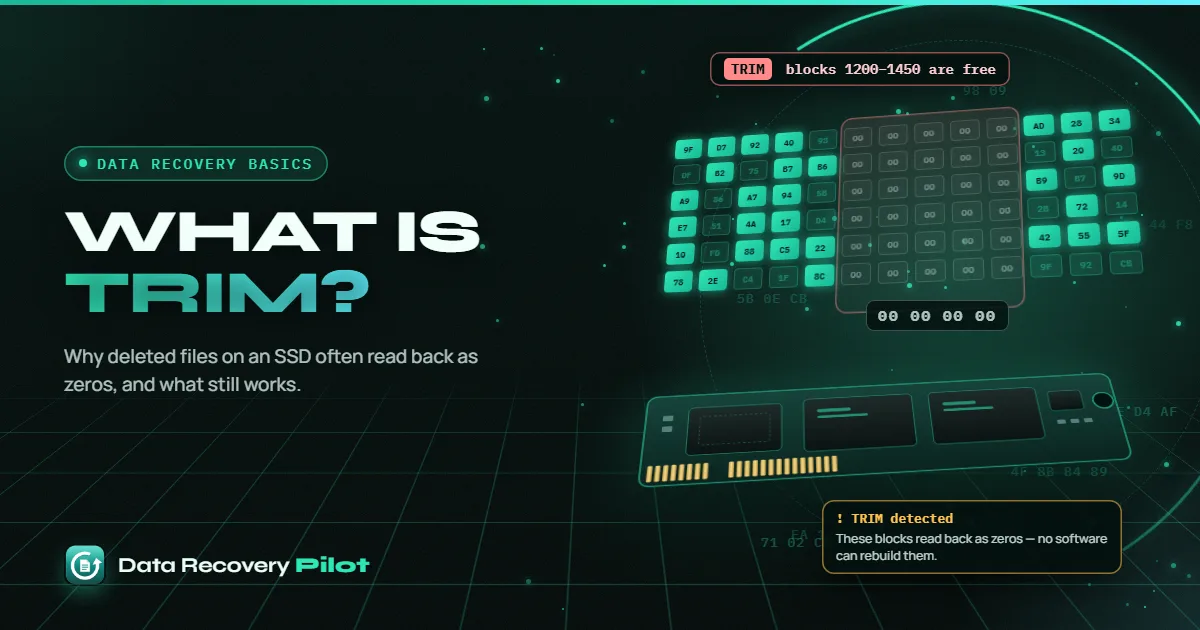
- On an SSD, format can trigger TRIM. Windows tells the SSD the space is free, and the SSD may erase it. After that, the old data reads back as zeros. That is why SSDs need extra care.
Avoid these too, until your files are safe:
- Partition “repair” or “fix” tools that write a new table without showing you the files first.
- Reinstalling Windows or letting a setup program pick that disk.
- Saving anything new to the disk, including recovered files.
Rebuilding the partition might work. But if it guesses wrong, it can make things worse. Copying your files off first means a wrong guess costs you nothing.
Step 3: Recover a lost partition's files on Windows 11 and 10 (deep scan)
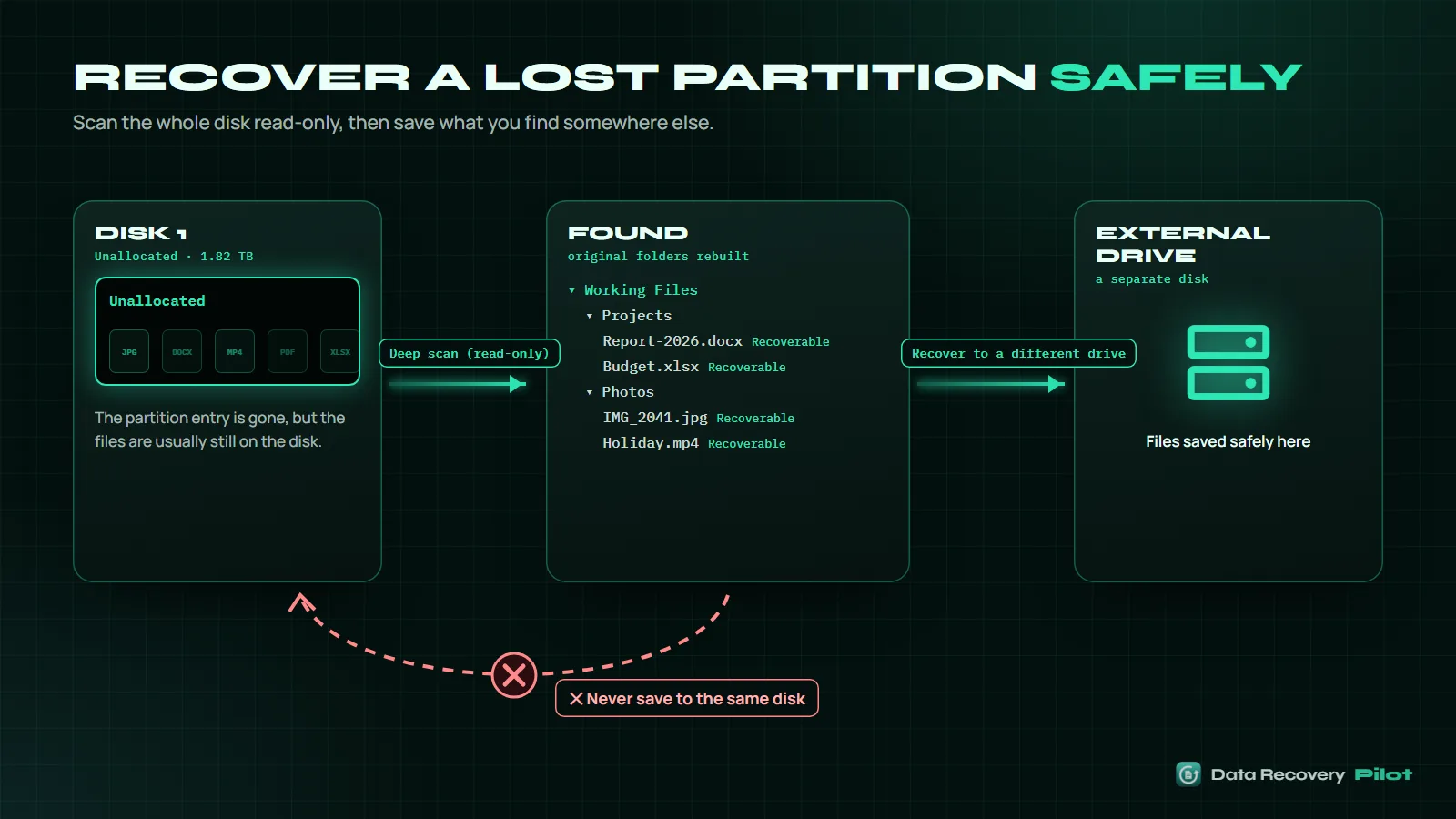
Because the partition has no drive letter, you need a tool that can read the whole physical disk, not just a lettered drive. Microsoft's free Windows File Recovery (winfr) works on a drive letter, so it's better suited to a partition that still has one.
Before you start
- Get a second drive with enough free space for everything you want back. An external USB drive is fine.
- Don't install anything onto the disk with the lost partition. Installing to your Windows drive is fine when the lost partition is on a separate disk.
Run the scan
- Install and open Data Recovery Pilot. It opens drives read-only, so scanning doesn't change the disk.
- Choose the whole disk that holds the unallocated space. Pick it by its size and model.
- Run a deep scan. A quick scan reads the file table of an existing partition; with the partition entry gone, the deep scan is the one that reads every sector and finds the old file system and the files inside it. Results appear while it runs.
- Let it finish. A deep scan of a large disk can take hours. Progress is saved at least every 30 seconds, so a crash or power cut doesn't send you back to the start.
- Check the results. Each deleted file is checked from start to end and labelled Recoverable, Damaged (at a given point) or Overwritten, so you know which files will open before you recover them.
- Preview important files: photos (including camera RAW and HEIC), videos, PDFs, Office documents and archives.
- Select what you need and recover it to your second drive. Recovering to the same drive is blocked, so you can't overwrite what you're rescuing by mistake.
Scanning, previewing and checking files are free. You need a license to save recovered files; see the pricing page. Our hard drive recovery guide covers more internal and external disk cases.
After your files are safe
Open a few recovered files from the second drive to make sure they work. Now it's safe to fix the disk: right-click the unallocated space, select New Simple Volume, format it, and copy your files back. If the partition went missing on its own, also check the disk's health before trusting it again.
If the disk is slow, clicking or disconnecting
A failing disk can lose its partition table because it can't read its own first sectors. Signs include long freezes, the disk vanishing and coming back, or a reported size that's wrong.
- Clicking, grinding, beeping or a burning smell: power the disk off now. Every minute it runs can cause more damage. Contact a professional data recovery lab.
- Slow or disconnecting, but no strange noises: make a disk image first, then scan the image instead of the disk. Data Recovery Pilot reads healthy areas first and weak areas last, gently, and can resume after a disconnect. It saves a lossless .drimg image. Creating an image needs a license. See our guide to recovering data from a failing hard drive.
What to do next
- Don't click New Simple Volume, Format or Initialize on that disk.
- Check Disk Management and match the status to the table above.
- If the partition still exists but has no letter, assign one and copy your files off.
- If it shows Unallocated, deep-scan the whole disk read-only and recover your files to a different drive.
- Only after you've opened your recovered files, create a new volume and restore them.
- Set up a backup so the next lost partition is an inconvenience, not a loss.
Questions people ask
Can a Windows update delete a partition?
It's uncommon for an update to remove a data partition on purpose, but a crash or power loss during the update's restarts, a setup step acting on the wrong disk, or a disk that was already failing can leave a partition showing as Unallocated. Whatever the cause, the files usually remain on the disk until something new is written over them, so recover them before changing anything.
Will assigning a drive letter erase my data?
No. Adding a drive letter through Change Drive Letter and Paths only changes a Windows setting, not the contents of the partition. It only works when the partition still exists with a file system such as NTFS or exFAT. On unallocated space the option is grayed out, because there is no volume to give a letter to.
Is it safe to run chkdsk on an unallocated partition?
Chkdsk works on a volume with a drive letter, so it can't check unallocated space at all. More importantly, on a damaged volume chkdsk writes repairs that can rename, move or remove damaged file records. Recover your files to another drive first, then run chkdsk or rebuild the partition once you have a safe copy.
How long does a deep scan of a 2 TB drive take?
It depends on the disk's speed and health, and a large hard drive can take several hours. A disk with weak areas can take much longer. Data Recovery Pilot shows results while it scans and saves progress at least every 30 seconds, so you can browse found files early and resume if the PC restarts.
My lost partition was on an SSD. Can I still recover it?
Often yes, if nothing has been formatted or written there since it vanished. The risk on an SSD is TRIM: once Windows tells the SSD the space is free, for example after you create and format a new volume, the drive may erase that data. Data Recovery Pilot detects TRIM and tells you honestly when files read back as zeros.
 Data Recovery Basics What is TRIM? SSD TRIM and Deleted Files Explained
 Data Recovery Basics How Does Data Recovery Work? A Plain-English Guide
 Data Recovery Basics What is Data Recovery Pilot? An Honest Introduction